How to use Lodestar
Last updated 12 October 2026
Lodestar adds the things you keep wishing the AQW Wiki, your character page and AQCloset already had. This guide walks through every feature, where to find it and how to get the most out of it. If you just want the quick version, read Getting started and you're set.
Getting started
Install Lodestar from the Chrome Web Store or Firefox Add-ons using the buttons on the home page. It works on three sites: the AQW Wiki (aqwwiki.wikidot.com), account.aq.com (character pages and your inventory) and AQCloset. There's nothing to sign up for.
Once it's installed, these three steps unlock almost everything:
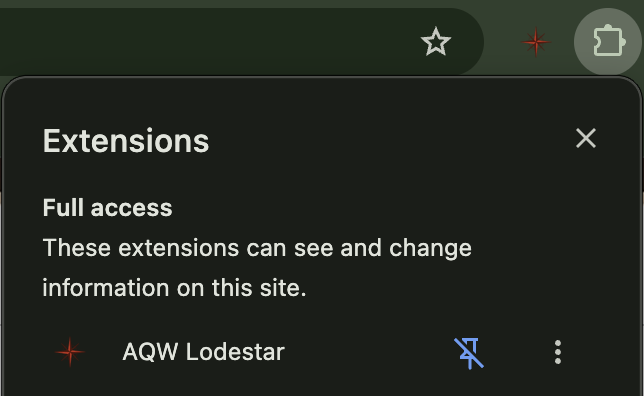
- Pin the extension. Click the puzzle-piece icon in your browser's toolbar and pin Lodestar, so its popup is one click away.
- Sync your inventory. Log in at account.aq.com, open your Inventory page and press Sync inventory. Now Lodestar knows what you own, and green checks start appearing everywhere. More about this.
- Enter your character name in the popup's search box and press Check bag. Lodestar remembers it, so "Try on" buttons can dress your own character. More about this.
Then open any item page on the wiki and hover a link. That's the tooltip, and it's the feature most people use every day.
The popup
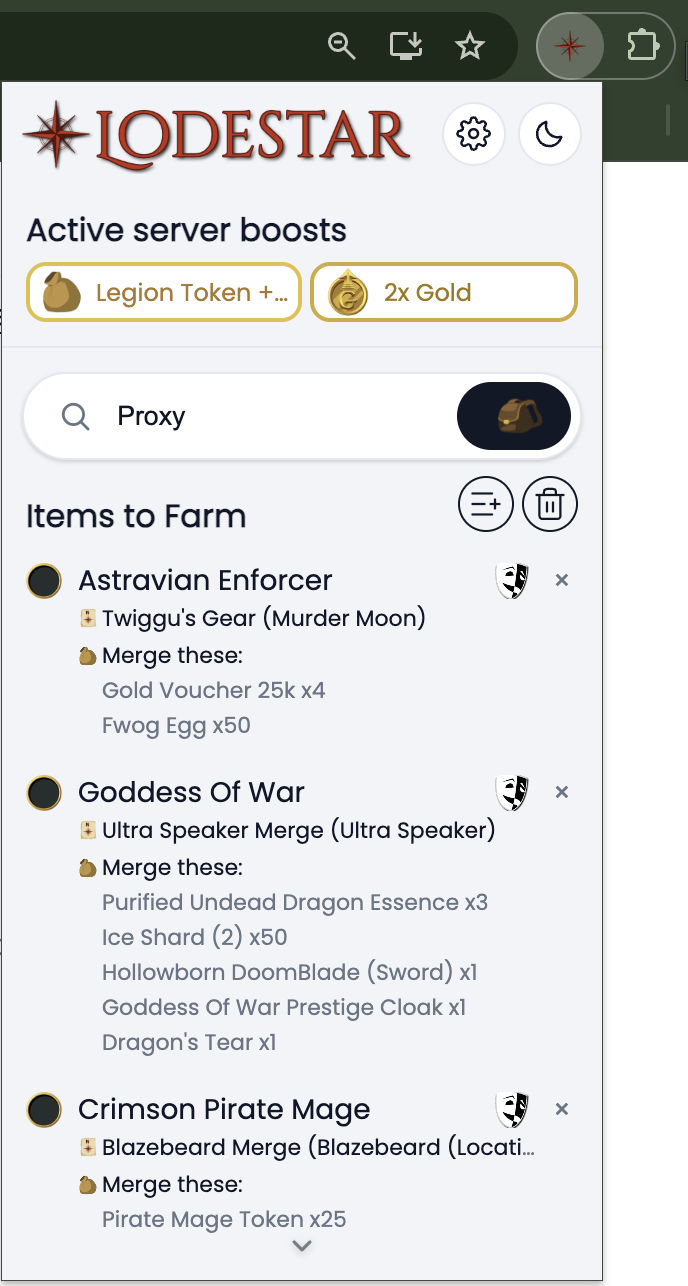
Click the Lodestar icon in your toolbar to open the popup. From top to bottom it has:
- Active server boosts, showing which boosts are on right now (see Server boosts).
- Search username and Check bag, for checking a character's inventory against your farm list.
- Items to Farm, your farm list (see The farm list).
- A dark/light switch and a gear button that opens Settings.
Settings
The gear button opens the settings, where you can:
- choose where the item tooltip appears (Side of screen or Above the item)
- choose how wiki pictures hosted on Imgur are handled (see Wiki pictures)
- fill AQCloset's inventory import with your synced inventory (see AQCloset)
- export or import your data (see Backing up)
Server boosts
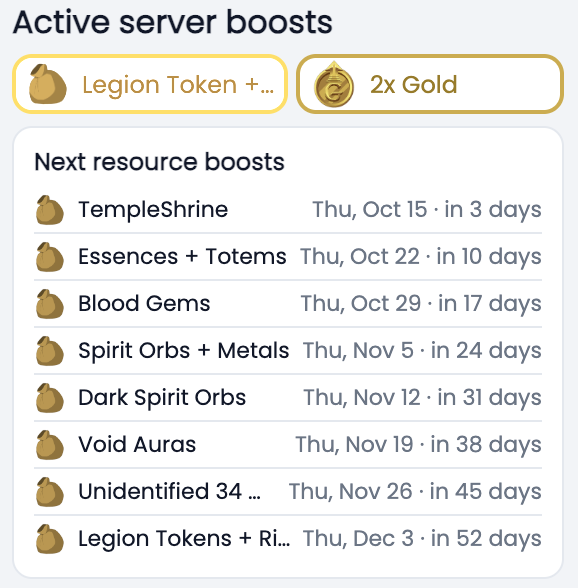
The top of the popup shows which server boosts are active right now, such as double XP, gold, class points or reputation, taken straight from the official Artix calendar. No more checking Twitter or the design notes to find out if it's worth logging in.
Click a boost badge to see when each kind of boost is next on the calendar, so you can plan your farming around the next double gold or rep weekend.
Item tooltips
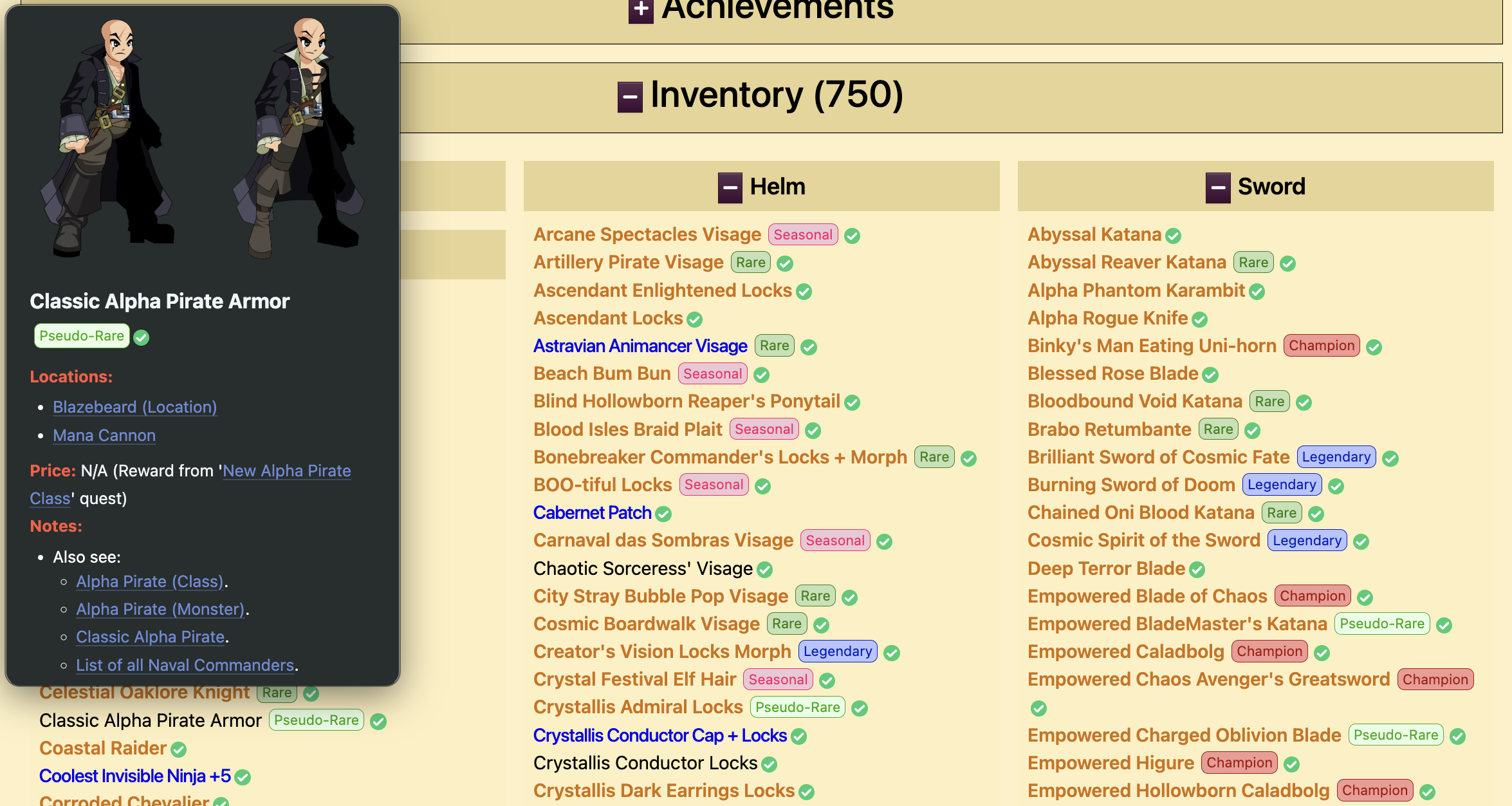
Hover any item link and Lodestar shows a preview of it: the item's pictures (male and female when the wiki has both), its rarity, where to get it, what it costs, and what it merges from. You no longer have to open ten tabs to compare items or to find where a merge material drops.
Tooltips work on:
- the AQW Wiki, on every item link: in shop lists, merge tables, quest rewards, drop lists and search results
- character pages on account.aq.com, on the equipment and every inventory item
- AQCloset, on the item cards in the wardrobe (with a switch to turn them off, see AQCloset)
Where the tooltip appears
By default the tooltip sits at the side of the screen, out of the way of what you're reading. If you'd rather have it right next to your cursor, open the popup's Settings and set Tooltip position to Above the item.
Your inventory and owned items
Lodestar can mark every item you already own with a green check, so you can tell at a glance what you still need. For that it needs to know your inventory, which you give it by syncing.
Syncing your inventory

- Log in at account.aq.com.
- Open your Inventory page (account.aq.com/AQW/Inventory).
- Press the Sync inventory button that Lodestar adds to the page.
That saves your full inventory, bank included, with item counts. Nothing is synced until you press the button, and the copy is saved only in your browser. Sync again whenever you've picked up new items, for example after a farming session or a shopping spree.
Where you'll see owned items
- a green check next to owned items on the wiki, on character pages, and in tooltips and item list cards
- a green border around owned items in the item lists and around item pictures on AQCloset
- the item's count in the check's hover text when you have more than one (handy for merge materials)
Collection progress
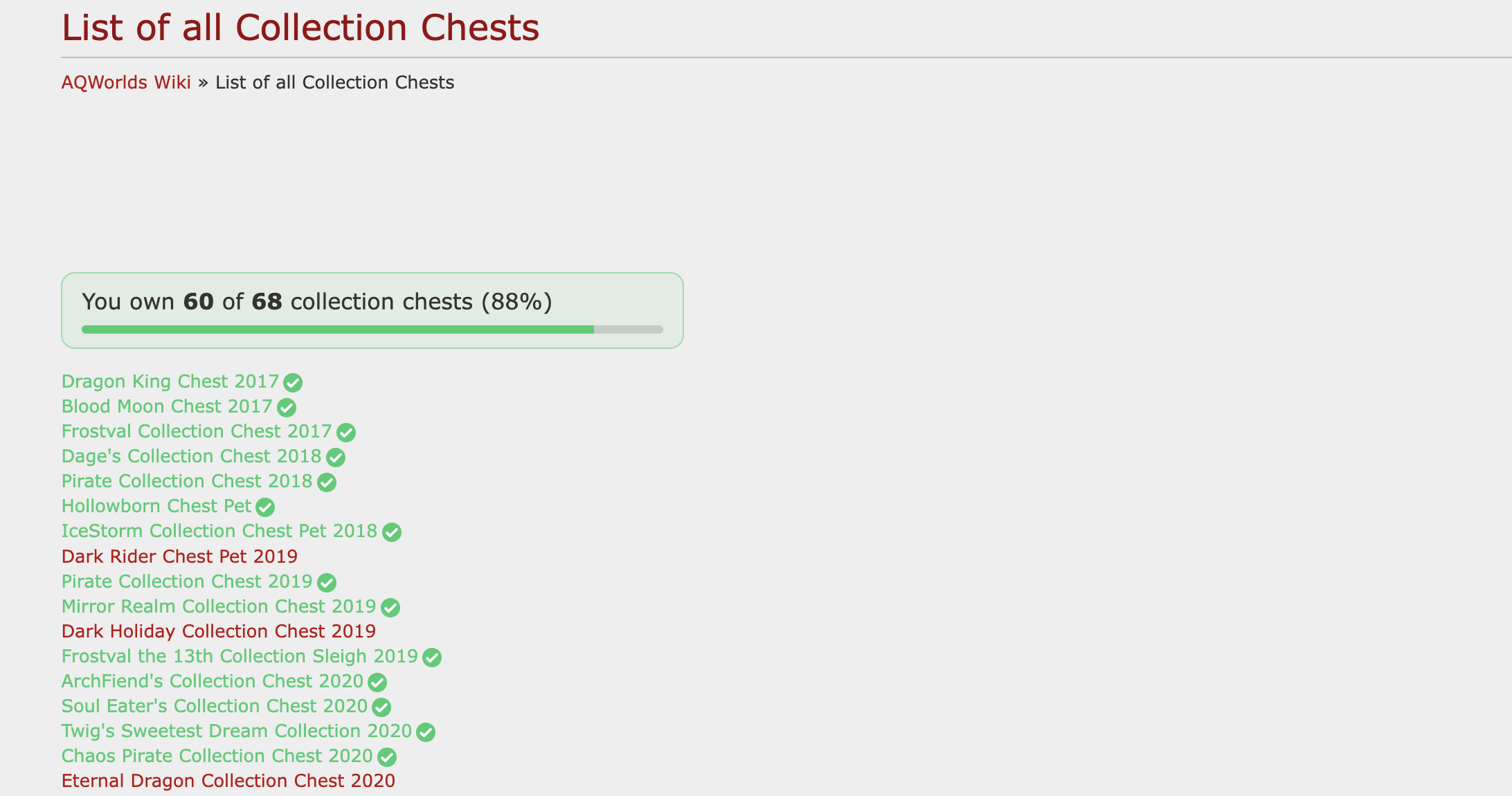
On wiki collection lists, such as the List of All Collection Chests, Lodestar adds a counter showing how many of the listed items you own, and owned items are shown in green. It's an easy way to track a collection you're working through.
Check bag: no login needed
The popup's Check bag looks up any character by name, using their public character page. Items they own on your farm list get ticked off, and items that aren't in your saved inventory yet are added to it. It's a quick top-up between full syncs, but it can only see what the character page shows, so bank items aren't included. For a complete picture, use Sync inventory.
The farm list
Items to Farm in the popup is your to-do list for AQW. Each entry shows the item's picture, where it's from, what it costs and, for merge items, the materials it needs, so you can see what to farm without opening the wiki.
Adding items
There are four ways to add an item:
- Right-click any item link on the wiki, a character page or AQCloset and choose Add to "Items to farm".

- Press Add to farm list next to the title on any wiki item page.
- Press the small farm button on a card in the item lists.
- In the popup, use Add item from link and paste a wiki link.
Every farm button shows whether its item is already on your list, and updates the moment the list changes anywhere.
Working through the list
- Tick an item when you've farmed it. It stays on the list, crossed off, until you remove it.
- Hover an item to see a bigger picture of it.
- Click the name to open its wiki page.
- Remove items with the × button.
The farm list also has its own button on the wiki's Search Items by Tag page, which shows your whole list as full item cards.
Trying items on
Wondering how an item would look on your character? Lodestar opens it in the AQCloset wardrobe, worn by your own character in their current outfit, so you see it with the rest of your look and not on a blank model.
You can try items on from:
- the Try on button next to the title on wiki item pages
- the try-on button on item list cards
- the right-click menu on any item link: Try on item
- character pages, where the shirt button next to Search opens that character's whole outfit in AQCloset
For your own outfit to be used, enter your character name in the popup and press Check bag once (see Getting started). Without a name, items are tried on a default character.
Seasonal and event item lists

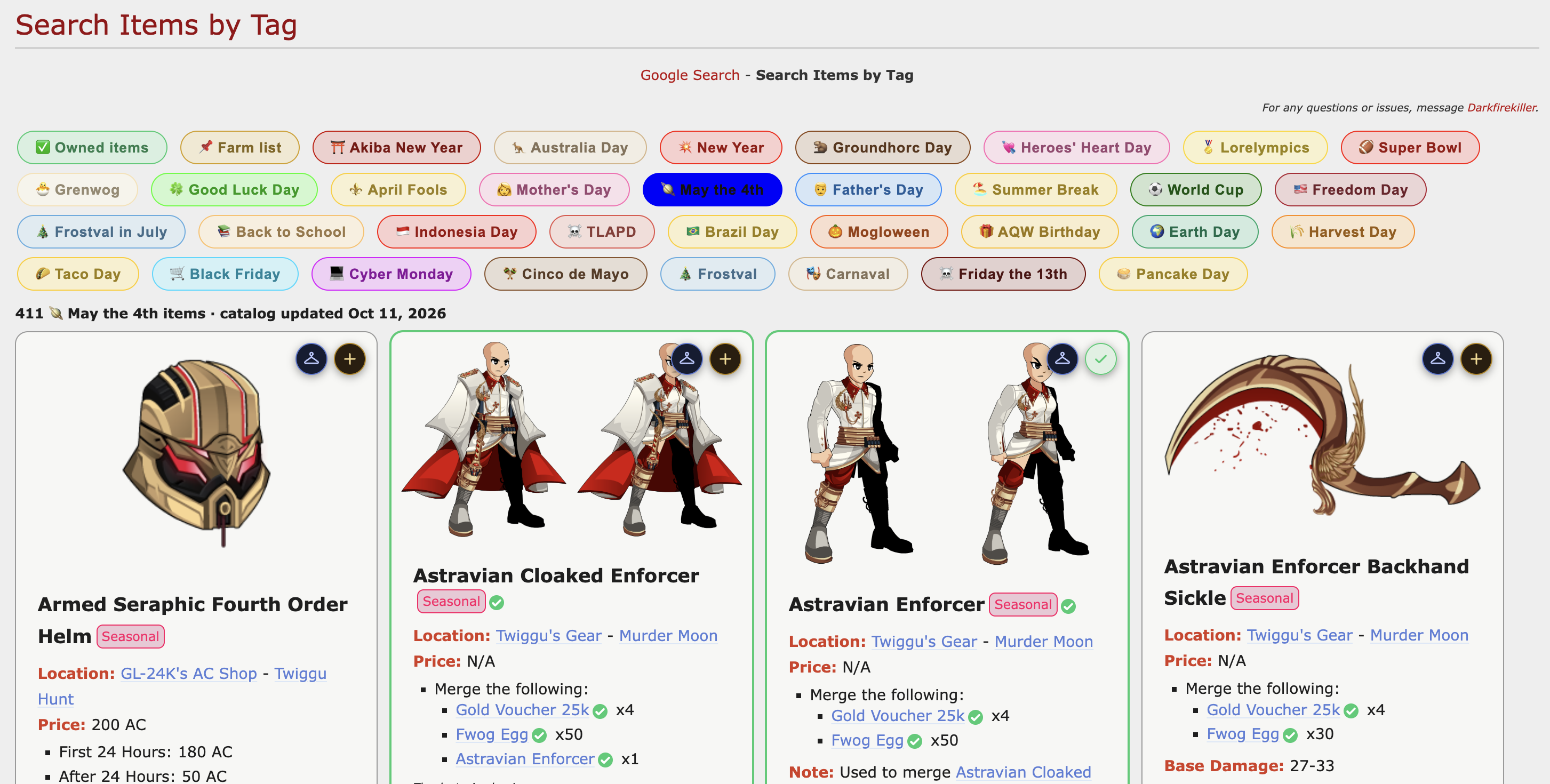
The wiki's Search Items by Tag page gets a row of buttons from Lodestar: one for every yearly event (Frostval, Mogloween, Talk Like a Pirate Day, Heroes' Heart Day, Black Friday and many more), plus Owned items and Farm list.
Click a button and every matching item appears as a card with its pictures, rarity, where to get it and its price. Each card has the owned check, a farm button and a try-on button. It's the fastest way to see everything an event offers before it starts, or to check what you're still missing.
- Event buttons show every item from that event, from a full item catalog that updates daily.
- Owned items shows everything in your synced inventory as cards.
- Farm list shows your farm list, in its own order.
Merge shop and quest calculators
Merge shops
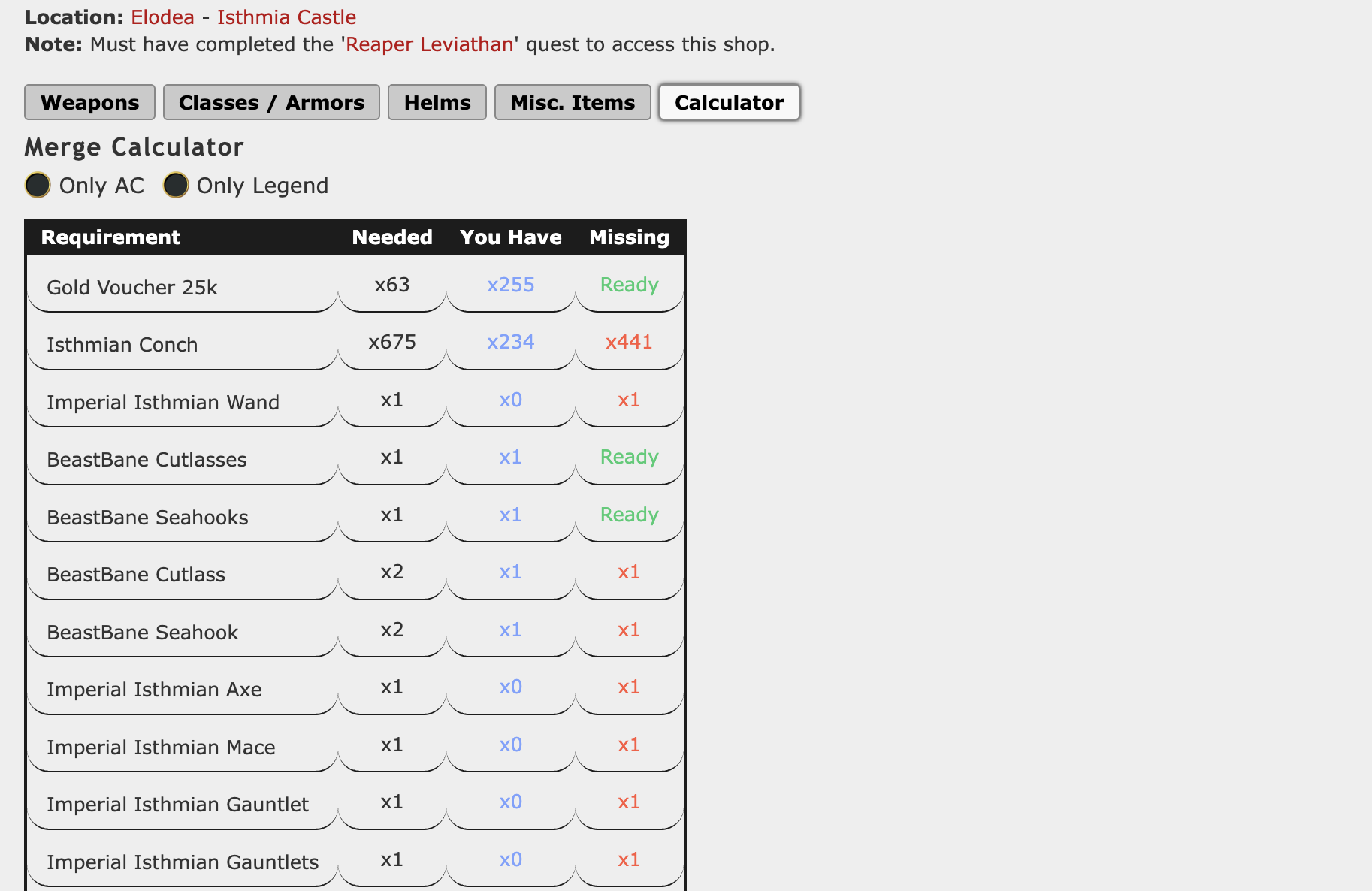
Every merge shop page on the wiki gets a Calculator tab. It adds up every material needed for the items in the shop, skips the items you already own, and compares the totals with your synced inventory, so you see exactly how many of each material you still need.
Use Only AC or Only Legend to count just those items, for example if you're only after the AC merges.
Quests
Quest pages get a panel above the quest tabs listing what the quest needs and how much of it you have. Set the Quest Turn-ins number to see the totals for doing the quest several times, which is perfect for working out how many monsters to farm for ten turn-ins.
Character pages
On account.aq.com character pages, yours or anyone else's, Lodestar adds:
- rarity badges on items (Rare, Seasonal, Legendary and so on)
- green checks on items you own yourself, so you can see what you have in common with another player
- tooltips on the equipment and inventory items
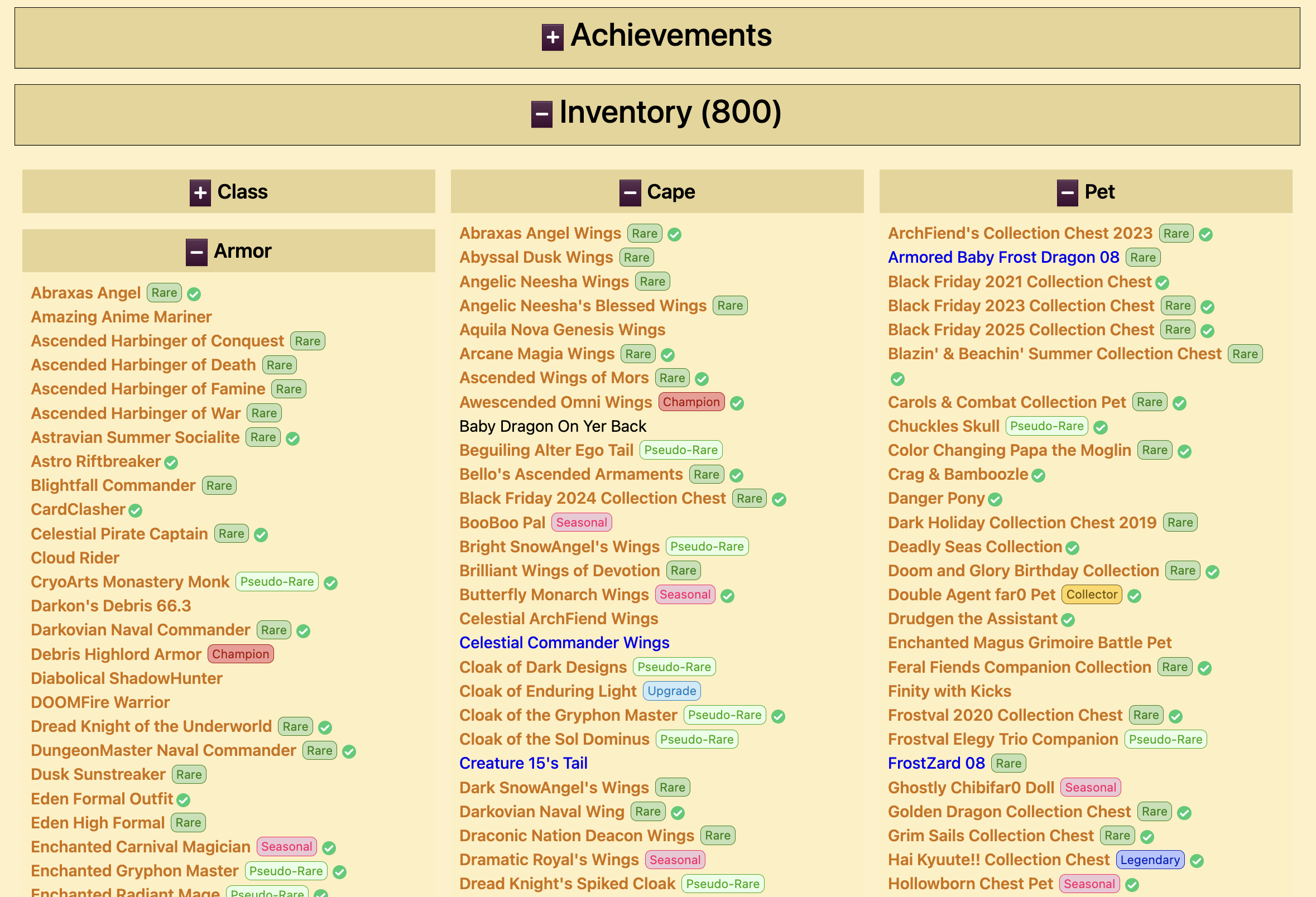
- +/− buttons on each inventory category (Class, Armor, Helm, ...) to fold away the ones you don't care about. Lodestar remembers which ones you folded.
- a shirt button next to Search that opens the character's whole outfit in AQCloset
- a download menu for the character's picture
Downloading a character image
The download button next to Search offers two images:
- Image shown on this page: the picture exactly as the character page shows it.
- Render with custom SWF (HD): a sharper render of the character with a transparent background, ready for edits, thumbnails or your Discord profile.
AQCloset
Arrange the wardrobe your way
Every panel in the AQCloset wardrobe gets a ⠿ handle next to its title. Drag it to move the panel up, down or into the other column. Lodestar remembers the layout, so the wardrobe looks the same next time.
Tooltips and right-click on AQCloset
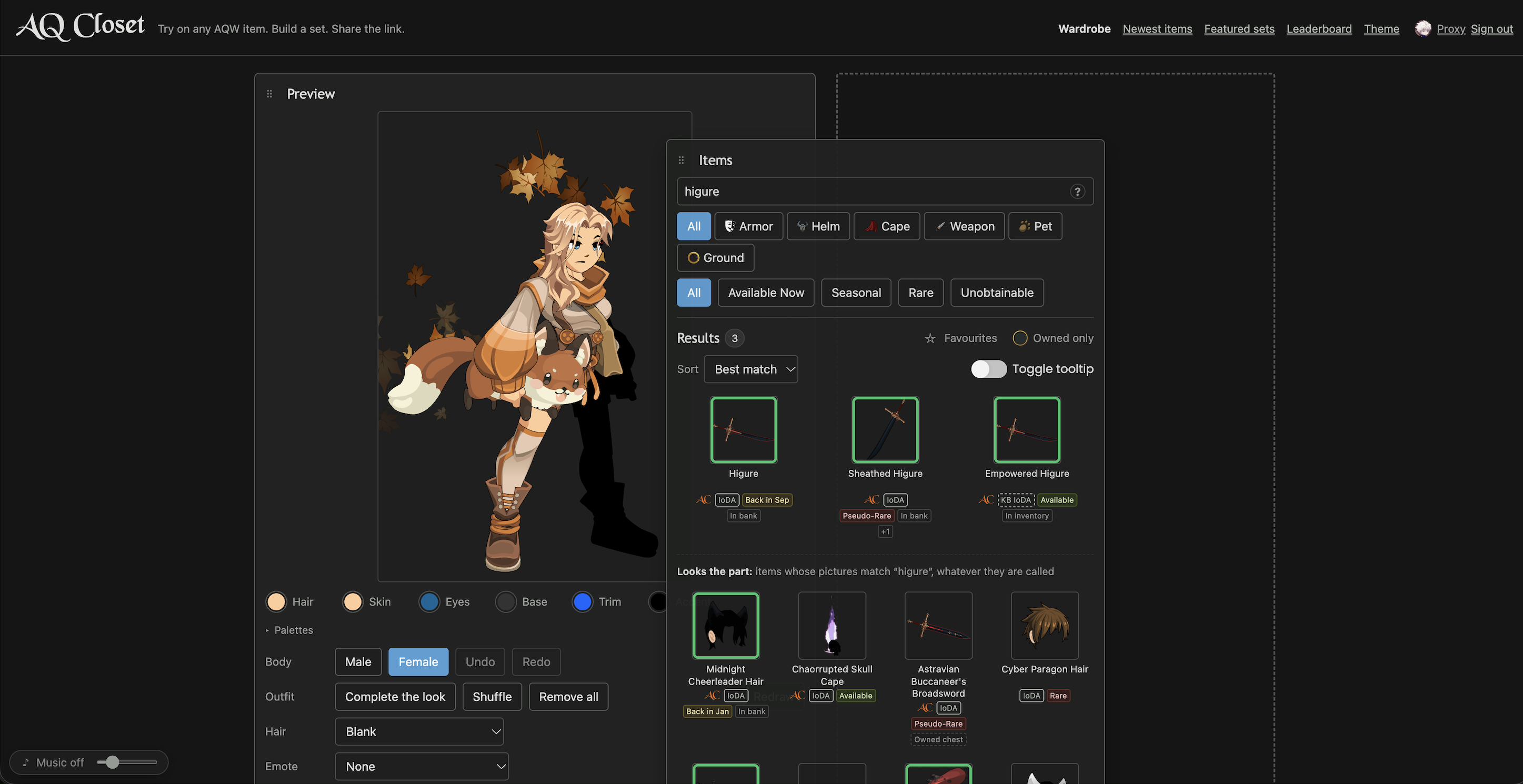
Item cards in the wardrobe get the same tooltips as the wiki. If you prefer AQCloset's own hover text, turn them off with the Toggle tooltip switch next to the sort menu. The right-click Add to "Items to farm" and Try on item menus work on AQCloset too.
Importing your inventory into AQCloset
AQCloset can mark the items you own if you import your inventory there. Lodestar fills in that import for you from your synced inventory: open your AQCloset profile and press Use Lodestar inventory next to AQCloset's Import button, or use Fill in on AQCloset in the popup's Settings. Nothing is sent until you press AQCloset's own Import button yourself.
Wiki pictures where Imgur is blocked
Most item pictures on the wiki are hosted on Imgur, which is blocked in some countries, such as the UK. There, every picture turns into a "not available in your region" image. Lodestar fixes that: on item pages it shows the AQCloset picture of the item where AQCloset has it, and loads the rest through an image proxy.
The Imgur images setting in the popup controls this. Automatic (the default) only steps in when Imgur is actually blocked where you are, Always replaces them everywhere, and Off never does.
Dark mode
The dark/light switch in the popup sets the theme for the popup and also gives the wiki and character pages a dark theme, which is easier on the eyes during late-night farming.
Backing up your data
Everything Lodestar saves (your farm list, synced inventory, AQCloset layouts and settings) lives in your browser. Before you reinstall, switch browsers or move to a new computer, open the popup's Settings and press Export under Your data to save it all to a file. On the new install, press Import… and choose that file to get everything back.
Common questions
Do I have to log in?
No. Tooltips, item lists, boosts, the farm list, try-on and the calculators all work without logging in anywhere. You only need to be logged in at account.aq.com if you wish to sync your inventory, and Check bag even works without that.
Is my data safe?
Yes. Lodestar doesn't send your data anywhere. Everything stays in your own browser, and nobody else can see it. The privacy policy explains exactly what it saves and which sites it talks to.
The checks are missing or out of date
Sync your inventory again on account.aq.com. The checks reflect your inventory as it was at the last sync, so new items only show up after the next one.
A tooltip shows the wrong item or no details
Tooltips are built from the wiki page each link points to, so an unusual or unfinished wiki page can give an empty or odd tooltip. If it keeps happening on a page that looks normal, please report it.
Found a bug or have an idea?
Use Report a bug or Suggest a feature on the home page. Every report is read, and plenty more features are on the way.